---
title: Calendar
description: The calendar draws your appointments and timed tasks as a day, a week, a month or an agenda - straight from the lines in your notes.
reviewed: 2026-10-28
---
## Four views of the same lines {#views}
The calendar has no data of its own. It reads the lines of your day notes that carry a time - an
appointment such as `09:30 Standup @team`, an open task such as `- [ ] 19:00 Call @paul` - and
draws them. Change a line and the calendar changes with it; write in the calendar and a line lands
in a note.
The row above the calendar switches between four views:
| View | What it shows | |
| --- | --- | --- |
| *Day* | One day as a time grid, with the open tasks that have no time above it | free |
| *Week* | Seven days side by side on one time axis | Pro |
| *Month* | The month as a grid of days, with a mark for each thing that has a time | Pro |
| *Agenda* | The next 30 days as a list, days without anything left out | Pro |

> [!PRO]
> *Week*, *Month* and *Agenda* are part of tagwerk Pro. Without it their buttons carry a lock, and a
> tap explains what Pro adds. The *Day* view and the note stay free. On Linux every Pro feature is
> included.
The calendar remembers on each device whether it was open and which view it showed, and comes back
the same way after a restart.
## Opening the calendar {#open}
How you get to the calendar depends on the width of the screen:
- **On a phone** (and in a narrow window) the bottom row has three tabs: *Note*, *Calendar* and
*Tasks*. The tab you are on is marked. *Calendar* shows the calendar in place of the note.
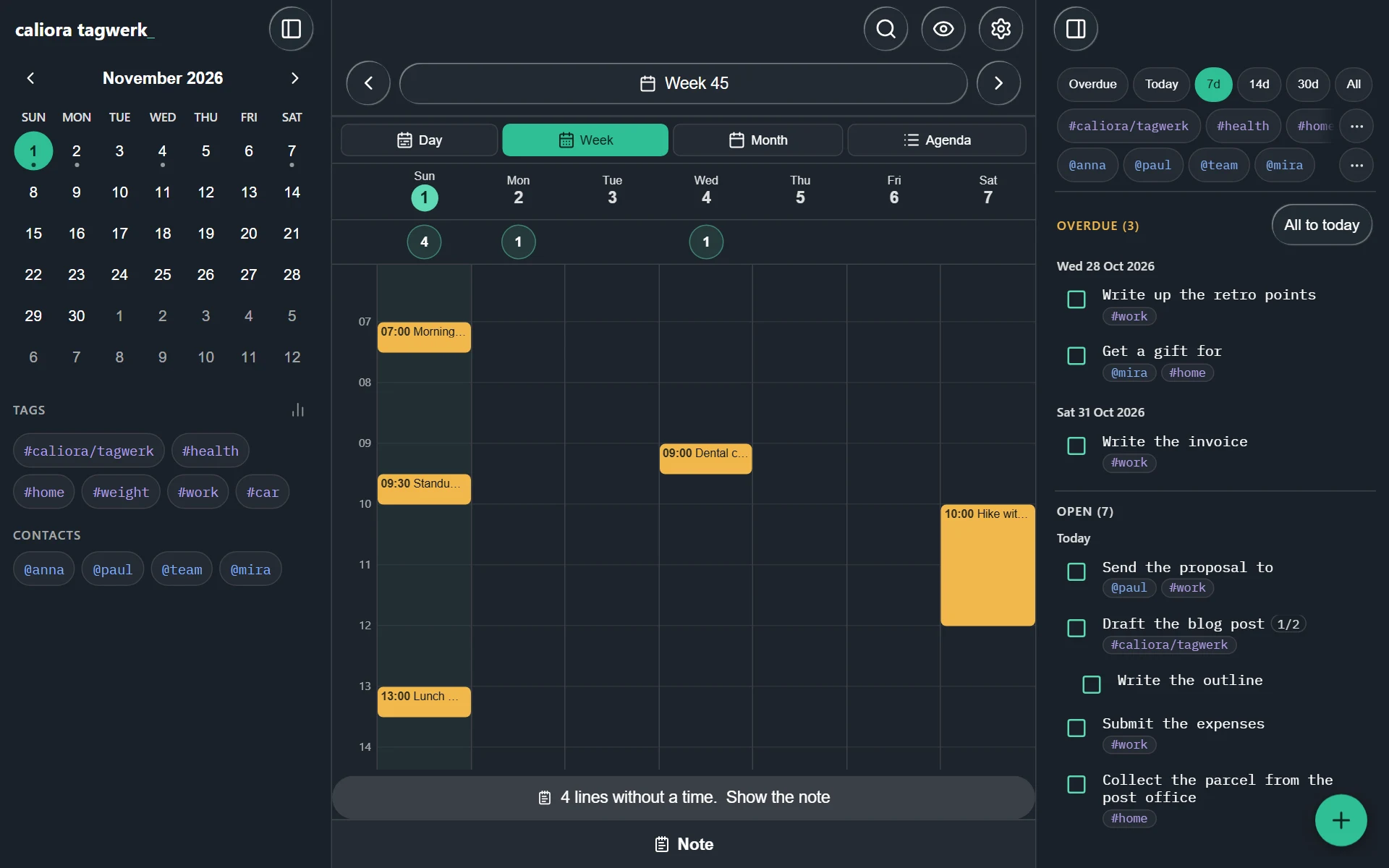
- **In the desktop layout** the calendar opens over the note in the middle pane. The button at the bottom of
the note says *Calendar*; with the calendar open, the same button says *Note* and takes you back.
The task list and the side panel stay where they are.
## Moving through time {#navigate}
The arrows beside the date button move by what the view shows: a day in the *Day* view, a week in
the *Week* view and the *Agenda*, a month in the *Month* view. Their tooltips say which.
The date button between them names what you are looking at: the day, *Week* with its number, or
the month and year. Tap it to open *Jump to date* and pick any day from a calendar.
On Windows and Linux the keyboard does the same:
| Keys | Does |
| --- | --- |
| Ctrl+Page Up / Ctrl+Page Down | One step back or forward |
| Ctrl+G | *Jump to date* |
| Alt+Home | Back to today |
The *Agenda* always starts at the day the page is on, not at today, so the arrows page through the
coming weeks.
## What the calendar draws {#drawn}
| On the grid | Comes from |
| --- | --- |
| An amber block | An appointment line, e.g. `13:00 Lunch with @anna` or `09:30-11:00 Review` |
| A mint block | An open or begun task with a time, e.g. `- [ ] 19:00 Vitamin C` |
| A block with a dashed border | A repetition drawn ahead of time - its day has no line for it yet |
| A struck-through block | An appointment that was called off: `19:00 ~~Mastermind~~` |
| A line across today's column | The current time |
A few rules decide what appears:
- **Finished tasks are not drawn.** A task that is done or dropped has had its hour.
- **A tag colour wins.** If a tag on the line has a colour (see
[Tags, people and search](../tags-and-search/index.md)), the block takes it; otherwise
appointments are amber and tasks mint, the same colours they have in the note.
- **Open tasks without a time** stand in a row above the day grid - the first three, and a
button such as *Show 2 more* for the rest. In the *Week* view each day gets a count instead; tap it for the
list of that day. The sub-tasks of an open task belong to it and do not stand in the row as tasks
of their own.
- **Lines without a time** - plain text, appointments without a time - are not drawn but counted.
The hint under the grid says, for example, *4 lines without a time.* and *Show the note* takes
you there.
- **The *Month* view** shows up to three marks per day and *+2* beyond that. A small dot marks a
day that holds writing but nothing with a time. Days of the neighbouring months are drawn
quietly.
- **The *Agenda*** lists only days that have something with a time, with the full span
(`09:30–10:00`) and a repeat icon beside repetitions.

The grid opens scrolled to the first thing on the day, or to the current hour on today. Every hour
of the day is there; scroll for the rest.
## Tapping in the calendar {#tap}
- **A block** opens its day in the note, with the cursor on its line. The line is where you change
it - the calendar has no editing form of its own.
- **A repeated appointment drawn ahead** opens its day. Above the note, *From a repeat* lists it
with *Write it in*, which writes a real line into that day. The details are in
[Appointments](../appointments/index.md).
- **A repeated task drawn ahead** opens *Repeating task* with *Go to the task* and
*End the repetition*. A repeating task has one line; the next copy is written when that one is
done.
- **A task in the row without a time** offers *Done*, *Move to day*, *Edit task* and
*Show the note* - and *End the repetition* if it repeats.
- **An empty hour** opens *New appointment*, with the day and the hour filled in. Give it a title,
an end, a repetition and the heading it belongs under, then *Save*: the line is written into that
day's note and the calendar stays open. Without a title, the note opens on the new time so you
can type the rest there.
- **A day** - in the *Month*, or a day's heading in the *Week* or the *Agenda* - closes the
calendar and opens that day's note.
## The small calendar in the side panel {#side-panel}
The side panel *Calendar and tags* has a month calendar at the top. A dot under a date means that
day's note holds something; empty files do not count. The day the page is on is highlighted. Tap
a date to go to that day; the arrows beside the month name change the month.

In the desktop layout the side panel is the left pane. On a phone it slides in from the left when you tap the
panel button at the top left, and closes again when you pick a day. Below the calendar it lists your
tags and contacts - see [Tags, people and search](../tags-and-search/index.md).
## First day of the week and week numbers {#weeks}
Both are in **Settings → App → *Display & controls***, and both are kept per device.
*Week starts on* offers *System*, Monday, Sunday and Saturday. *System* follows the device, not the
app's language: a computer set to Monday keeps Monday under the English interface. The choice
reaches every calendar in the app - the *Week* and *Month* views, the small calendar in the side
panel, every date picker and the order of the weekday templates.
*Calendar weeks* adds a column of week numbers to the *Month* view, the side panel and the date
pickers. It is off by default.
| Choice | Week 1 is | Weeks start on |
| --- | --- | --- |
| *Off* | - no numbers are shown | - |
| *ISO 8601* | the week with the first Thursday of the year | Monday |
| *1 January* | the week with 1 January | Sunday |
The two systems differ by one in some years - 1 January 2027 is in ISO week 53 and in week 1 of the
other system - so pick the one the people you share week numbers with use. Each row is numbered
after the week most of its days belong to, so the numbers stay right whichever day your weeks start
on. The *Week* view's date button uses the same system; with the column off it counts ISO weeks.