---
title: The day note
description: Write in the note of a day, move between days, format text, divide a day into sections, link to web pages, days and files, and get back an earlier state.
reviewed: 2026-10-28
---
## One file per day {#one-file}
Every day has one note, and every note is one Markdown file named after its date, such as
`2026-10-28.md`. What you write in it is the whole record: tasks, appointments, tags and plain
text stand in it as lines. The task list, the calendar and the statistics are read from these
lines.
- **Saving is automatic.** tagwerk writes the note while you type. There is no save button. If a
write fails, a strip under the note says *Changes are not being saved.*, and *Show details*
names the reason.
- **A day without text has no file.** Opening an empty day writes nothing. The file appears with
the first character you type.
- **Changes from outside arrive by themselves.** When a sync tool or another editor changes a note,
tagwerk picks up the new text.
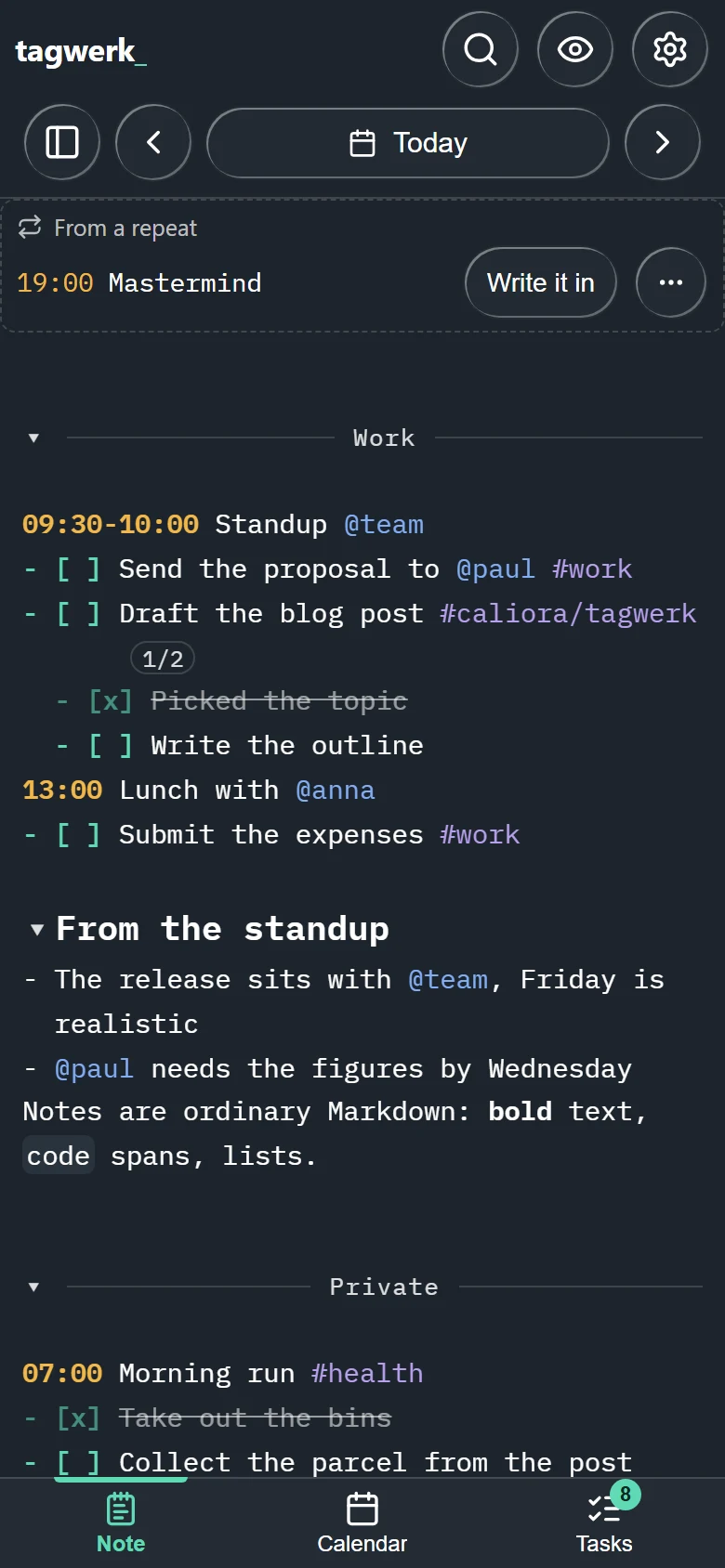
## Moving between days {#navigate}
The day row above the note is how you get from one day to another:
| To... | Do this |
|---|---|
| go one day back or forward | Tap the left or right arrow. On a touch screen, flick the note sideways: to the left for the next day, to the right for the day before. |
| jump to any date | Tap the date in the middle of the day row. A calendar opens (*Jump to date*). |
| come back to today | Tap *Today*. It is there whenever another day is on screen. |
| open a day from the month | Tap the day in the calendar of the side panel *Calendar and tags*. Days with notes carry a dot. |
A flick that starts at the very edge of the screen opens a side panel instead of changing the day.
While the calendar is open, the arrows move by the calendar's view - a week in the week view, a
month in the month view.
On Windows and Linux the keyboard does the same:
| Keys | Action |
|---|---|
| Ctrl+Page Up | Previous day |
| Ctrl+Page Down | Next day |
| Alt+Home | Today |
| Ctrl+G | Jump to date |
## Writing {#writing}
A note is plain text, and the first characters of a line decide what the line is:
| Line | What it is | More |
|---|---|---|
| `- [ ] Send the proposal` | A task | [Tasks](../tasks/index.md) |
| `09:30 Standup` | An appointment | [Appointments](../appointments/index.md) |
| `# Work` or `--- Private ---` | A heading or a named section | [Sections](#sections) |
| anything else | Text, Markdown | [Formatting](#formatting) |
A `#tag` or an `@person` can stand in any of these lines. Typing `#` or `@` offers the tags and
people you have used before; see [Tags and search](../tags-and-search/index.md).
```tagwerk
# Work
09:30-10:00 Standup @team
- [ ] Send the proposal to @paul #work
- [x] Check the numbers
- [ ] Attach the PDF
Lunch was good. **Ask about the budget** on Friday.
```
An indented task under another one is a sub-task and travels with it. The complete rules are in
the [format specification](../../format.html).
## The editor toolbar {#toolbar}
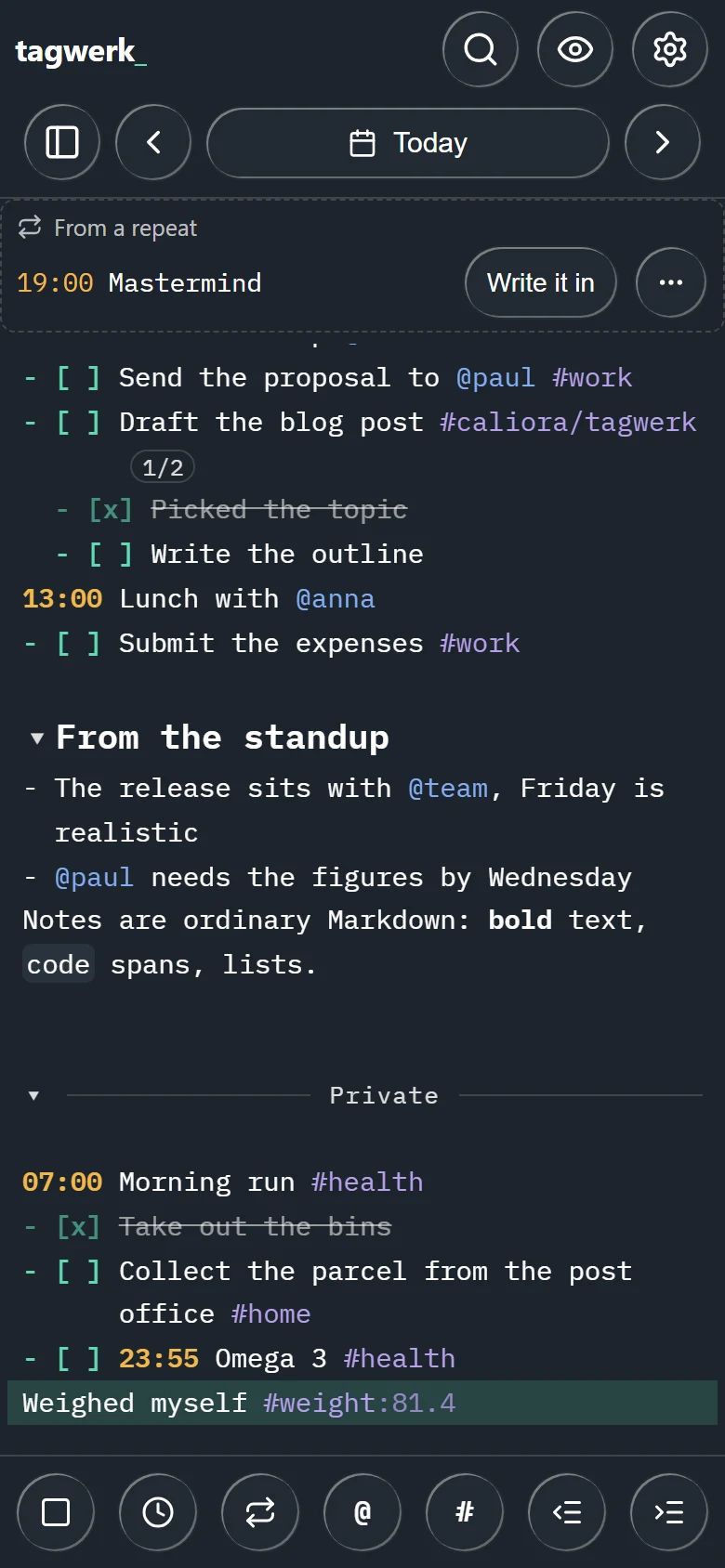
The row of buttons under the note works at the position of the cursor. With mouse and keyboard
it is always visible. On a phone it comes up with the keyboard and stands above it, because without the
keyboard there is no cursor for it to work at.
| Button | What it does |
|---|---|
| *Task* | Turns the line into a task (*Insert task*). On a line that already is a task, it opens the task's form (*Edit task*). |
| *Time* | Opens a sheet that gives the line a time (*Insert time*). On a line that has one, it changes it (*Edit time*). |
| *Repeat* | Opens the sheet that sets how a task or an appointment repeats. |
| *Contact* | Inserts `@` and offers the people you have used. |
| *Tag* | Inserts `#` and offers your tags. |
| *Outdent*, *Indent* | Move the line one level out or in. A sub-task is an indented task. |
| *Undo*, *Redo* | Appear at the end of the row as soon as there is something to undo or redo. |
On a narrow phone the row scrolls sideways when it holds more buttons than fit.
## Undo and redo {#undo}
*Undo* and *Redo* take back and repeat your own edits in the open note: typing, a task ticked in
the note, a line inserted by a button. With a keyboard, Ctrl+Z undoes and
Ctrl+Y redoes.
- The undo history belongs to the day on screen. When you change to another day, it starts afresh.
- A new version of the note that arrives from outside - from sync, or from a task moved here from
another day - is not an edit of yours and cannot be undone. To go back past it, use the
[revision history](#history).
## Formatting {#formatting}
The editor draws a few Markdown marks and keeps the characters in the file:
| You write | You see |
|---|---|
| `**bold**` | **bold** |
| `` `code` `` | `code` in a monospaced box |
| `~~struck through~~` | struck-through text |
| `# Heading` to `###### Heading` | a heading, larger the fewer hashes |
| a line of three backticks before and after | a code block; nothing inside it counts as a task, time or tag |
| `---` on its own line | a dividing line |
The marks step back while the cursor is elsewhere and show again on the line the cursor is on, so
you can edit them. Everything else in Markdown - lists, quotes, tables - stays as you wrote it.
On Windows and Linux, Ctrl+B sets or removes bold around the selection and
Ctrl+E does the same for code.
> [!NOTE]
> An appointment whose whole text is struck through, such as `19:00 ~~Mastermind~~`, means more
> than appearance: it is cancelled. See [Appointments](../appointments/index.md).
## Sections {#sections}
A heading divides a day into sections. Two kinds of line start one:
- a Markdown heading: `# Work`, `## Morning`;
- a named divider: `--- Private ---` - three hyphens, a title, three hyphens. tagwerk draws it as
a line with the title in the middle.
A section runs until the next heading of the same or a higher level. A blank line does not end it.
A plain `---` ends a section without starting a new one.
### Fold a section {#fold}
The small arrow in front of a heading or a named divider folds its section away. Tap it again to
unfold. With a keyboard, Ctrl+Alt+F folds the section the cursor is
in.
Folding goes by the title, not by the day. Fold `Habits` once and the section called `Habits` is
folded on every day, until you unfold it. The choice is kept on this device; the file does not
change. Typing or pasting into a folded section unfolds it, so what you write stays in view.
### Sections and moved tasks {#sections-tasks}
A task that moves to another day, or comes back through a repeat, lands under the heading with the
same title there. If that day has no such heading yet, tagwerk writes the heading first. The exact
rules are in the [format specification](../../format.html).
## Links {#links}
tagwerk recognises four kinds of link in a note. The text stays editable; a small mark behind the
link opens it.
| You write | It leads to | How to open it |
|---|---|---|
| `https://example.org/page` | a web page | Tap the arrow behind the address. |
| `[Docs](https://example.org/page)` | a web page; the title is shown, the address folds away | Tap the arrow behind the title. |
| `>2026-11-02` | that day | Tap the marker. |
| `2026-11-02` | that day | Tap the calendar mark behind the date. |
| `[[Project notes]]` | a file in a linked folder | Tap the file mark behind the link. |
On Windows and Linux, Ctrl+click on a link opens it as well, and
Ctrl+Alt+Enter opens the link on the cursor's line.
### Web links {#web-links}
Only addresses written out in full with `http://` or `https://` are links. `www.example.org` on its
own is text. Nothing inside an address counts as a tag or a contact, so the `#section` in
`https://example.org/page#section` stays part of the address.
### Day links {#day-links}
`>2026-11-02` is the marker tagwerk writes when a task moves to another day, and it can stand in
any line. A date written on its own also leads to its day, except the date of the note you are in.
```tagwerk
- [>] Review the offer @paul >2026-11-02
Invoice from 2026-10-01 still open, check on Friday.
```
### Links to files {#vault-links}
`[[Name]]` opens a file in a folder you have linked to tagwerk. Link the folders first:
1. Open *Settings → Linked folders*.
2. Tap *Link a folder...* and pick the folder.
A link names a file (`[[Meeting notes]]`) or a path inside the folder
(`[[Clients/Meier]]`). Without an extension, `.md` is meant. After a `|`, a label can stand in for
the name: `[[Meier|the offer]]`. If several files carry the name, tagwerk asks which one.
| File | What happens |
|---|---|
| Markdown (`.md`) | Opens in a sheet inside tagwerk, formatted. *Formatted* and *Source* switch between the two views. |
| Text (`.txt`, `.log`) | Opens in the sheet as plain text. |
| Pictures, PDFs, audio, video, office documents | Open in the app your system uses for them. |
| Anything else | Opens only after a question. |
The list of linked folders belongs to the profile on this device. A note carrying a link opens the
file where that folder is linked, and reports that it found nothing where it is not.
## What the day shows {#view}
The *View* menu (the eye at the top) hides parts of the day without touching the file:
- *Hide finished tasks* hides done, dropped and moved tasks, with their sub-tasks.
- *Hide appointments that have passed* hides today's appointments whose time is over.
A strip under the note says how many lines are hidden; *Show* brings them back.
A repeating appointment that falls on the day appears above the note under *From a repeat*,
because it is not written in the day's file. *Write it in* puts it into the note. More in
[Appointments](../appointments/index.md).
## Revision history {#history}
tagwerk keeps earlier states of every day: when the day is opened, before a sync writes over it,
before another program's change is taken over, and before a restore. It keeps up to 20 states per
day and nothing older than 180 days. The history is free.
To get back an earlier state:
1. Open the day.
2. In the side panel *Calendar and tags*, tap *History → Earlier states*. The button appears once
the day has a kept state. On a phone, open the side panel with the button at the left of the day
row first.
3. Each state shows what differs from the note now. Tap *Restore* on the one you want.
Restoring keeps the state it replaces, so a restore can be taken back the same way. The history
lives in the app's own storage on this device, not in your notes folder.
## Day templates {#templates}
A day template is the text a new day starts with - your headings, the habits you tick every
morning. It is applied when you open a day that holds nothing, and when a moved or repeating task
lands on an empty day.
> [!PRO]
> Day templates need tagwerk Pro. Without it, template files you already have stay in your notes
> folder untouched.
To write one:
1. Open *Settings → Templates & tag colours*.
2. Under *Day templates*, tap *Write a template...* (or *Manage templates...* once one exists).
3. Choose the default template, or *New template...* for a weekday or a day of the month.
A day takes the most specific template that exists: one for its day of the month first, then one
for its weekday, then the default. Templates are never combined. A template writes nothing by
itself: a day you open and leave stays without a file.
```tagwerk
## Morning
## Work
--- Habits ---
- [ ] 07:00 Run #sport
- [ ] Weigh myself #weight
```
The templates are files in the `templates/` folder of your notes folder and travel with your notes.
## When a day exists twice {#conflicts}
If a day was changed on two devices, or by another program while tagwerk had it open, a strip
above the note says *This day exists twice.* - how to compare and merge the versions is explained
in [Sync](../sync/index.md).