---
title: Tasks
description: How to write a task, tick it off, move it to another day or drop it - in the note, in the task form and in the task list across all days.
reviewed: 2026-10-28
---
## The task line {#syntax}
A task is a line in the day note that starts with a checkbox. You type it like a Markdown task
list: a hyphen, a space, the box in brackets, then the text.
```tagwerk
- [ ] Write the invoice @paul #work
```
The character in the brackets is the task's state. There are five:
| Written | State | Meaning |
| --- | --- | --- |
| `- [ ]` | Open | Still to do. |
| `- [/]` | In progress | Begun, not finished. Counts as open everywhere: it is in the task list, it goes overdue, it can be ticked off and moved like an open task. |
| `- [x]` | Done | Finished. `[X]` works as well. |
| `- [>]` | Forwarded | Moved to another day. The line stays here as a trail, the task itself is now on the other day. |
| `- [-]` | Dropped | Given up on without doing it. |
A few rules for the line:
- The bullet is a hyphen. `* [ ]` and `+ [ ]` stay ordinary list items.
- A checkbox with nothing after it is not a task yet. It does not appear in the task list until
you have written something.
- You do not have to type the hyphen. `[ ]` or `[]` at the start of a line becomes `- [ ]` as soon
as you type the space after it, or when the note is saved.
- Inside a fenced code block nothing is a task.
The exact rules are in the [format specification](../../format.html#tasks).
## Priority and "not before" {#priority}
A task is normal unless it carries a priority marker. The marker is a single character standing on
its own, usually at the end of the line:
| Written | Priority | Effect |
| --- | --- | --- |
| `!` | Important | Listed first in the task list; the checkbox is coloured. |
| `~` | Low priority | Listed last ("whenever"). |
```tagwerk
- [ ] Finish the report !
- [ ] Watch the next episode ~
```
The character has to stand alone, so "Great news!" keeps its exclamation mark and is not a
priority.
A time directly after the checkbox says from when the task is worth showing outside the note:
```tagwerk
- [ ] 19:00 Omega 3 #health
```
This "not before" time applies only to today. Until 19:00 the task list and the home-screen
widgets hold the task back; the note always shows it. A task on a later day is not affected, and on
a past day every hour has passed. The time is one moment, never a range. A time at the start of a
line without a checkbox makes an appointment instead - see
[Appointments and repeats](../appointments/index.md).
## Sub-tasks {#subtasks}
Lines indented under a task belong to it, up to the first blank line or the first line that is not
indented deeper. Task lines in that block are sub-tasks; everything else is the task's description.
```tagwerk
- [ ] Draft the blog post #caliora/tagwerk
- [x] Picked the topic
- [ ] Write the outline
Link the release notes at the end.
```
- Indent with Tab and Shift+Tab, or with *Indent* and *Outdent*
in the note's toolbar on a phone.
- Behind the task, the note shows how far the checklist has come, for example `1/2`. Only `[x]`
counts as done; `[ ]` and `[/]` count as not done; dropped and forwarded sub-tasks are not
counted at all.
- Ticking off or dropping the task settles its open sub-tasks with it. Sub-tasks that already have
a state of their own keep it.
- When the task moves to another day, the whole block moves with it.
In the task list, open sub-tasks appear indented under their task. The task form lists them under
*Sub-tasks*, where you can tick them off.
What is counted is tasks, not rows: a task with its sub-tasks counts once - in the *Overdue* and
*Open* headings, on the *Tasks* tab and in the widget's counter. An open sub-task whose task is
already done counts as a task of its own. In the task list it stands indented under its task, which
is shown greyed and struck through above it; a tap on that line opens it like any other. In the
widget it stands without indentation, also when *Show sub-tasks* is off.
## Ticking off {#ticking}
You can finish a task in several places. They all do the same thing to the note.
- **In the note:** tap the checkbox. A tap on `[ ]` or `[/]` makes it `[x]`; a tap on `[x]` takes
the tick back to `[ ]`. With a keyboard, Ctrl+Enter ticks the task the
cursor is on.
- **With mouse and keyboard:** right-click the checkbox (or press Shift+F10 on a task
line) for a menu with every state - *Open*, *In progress*, *Done*, *Dropped* - and *Move to day*.
- **In the task list:** tap the checkbox of the row, or swipe the row and choose *Done*.
- **In the task form:** set *State* to *Done*.
- **On Android:** tap a task in the home-screen widget. The card that opens offers *Done*, *Drop*,
*In progress* and *Move to day*.
A task that repeats writes its next occurrence when you tick it off or drop it. How that works is
described under [Repeating tasks](../appointments/index.md#repeating-tasks).
### Readings asked on ticking off
A tag with a colon and nothing behind it - `#coldshower:` - is waiting for a reading. When you
tick off a task that carries one, tagwerk asks for the value in *Enter readings* and writes it
behind the colon, for example `#weight:81.4`. If you cancel, the task stays open. With a field
left empty the sheet says *Not every value is filled in.* and the button under it reads *Finish
anyway*: the task is done and the tag keeps waiting. Beside it,
*Save as in progress* writes the values you typed and sets the task to *In progress*. Where two
tags or more wait, *Enter readings only* fills them in bit by bit without ticking anything off. Dropping
a task asks nothing.
What a reading may contain and where the numbers end up is described in
[Tags and search](../tags-and-search/index.md#readings).
## Moving to another day {#moving}
Moving a task writes two lines in two notes. The day it came from keeps a trail; the target day
gets an ordinary open task:
```tagwerk
- [>] Review the offer @paul >2026-08-12
```
The trail is the state `[>]` and the marker `>` followed by the date. A tap on the marker or on the
box opens that day; the trail itself is not opened again, because the task is on the other day now.
The copy on 12 August reads `- [ ] Review the offer @paul`.
- The sub-tasks and the description move with the task and are removed from the old day.
- The copy lands under the same heading it had on the old day. If the target day does not have
that heading, it is written there.
- A task that stood under no heading lands before the first heading of the target day, where the
day begins. A day without headings gets it at the end.
- A task in progress arrives as `- [/]`. Readings on its tags stay behind; the copy carries the bare
`#tag:` again.
- If the target day already holds the same line, it is not added a second time.
- Done and dropped tasks cannot be moved - the completion would be lost.
Where to move a task:
- **Note (mouse):** right-click the checkbox, then *Today*, *Tomorrow*, *Day after tomorrow*, the
weekday a week ahead, *In a month* or *Another date...*.
- **Task form:** the *Move to day* row with the same choices. It appears only for open and
in-progress tasks.
- **Task list:** swipe the row and choose *To today* or *Move to day*.
## Dropping {#dropping}
`- [-]` marks a task you decided not to do. It stays in the note as a record, leaves the task list
and does not go overdue. Drop a task with *Dropped* in the right-click menu or the form's *State*,
with *Drop* in the task list's swipe actions, or on the widget card. A repeating task comes back
on its next day even when it is dropped.
## The task form {#form}
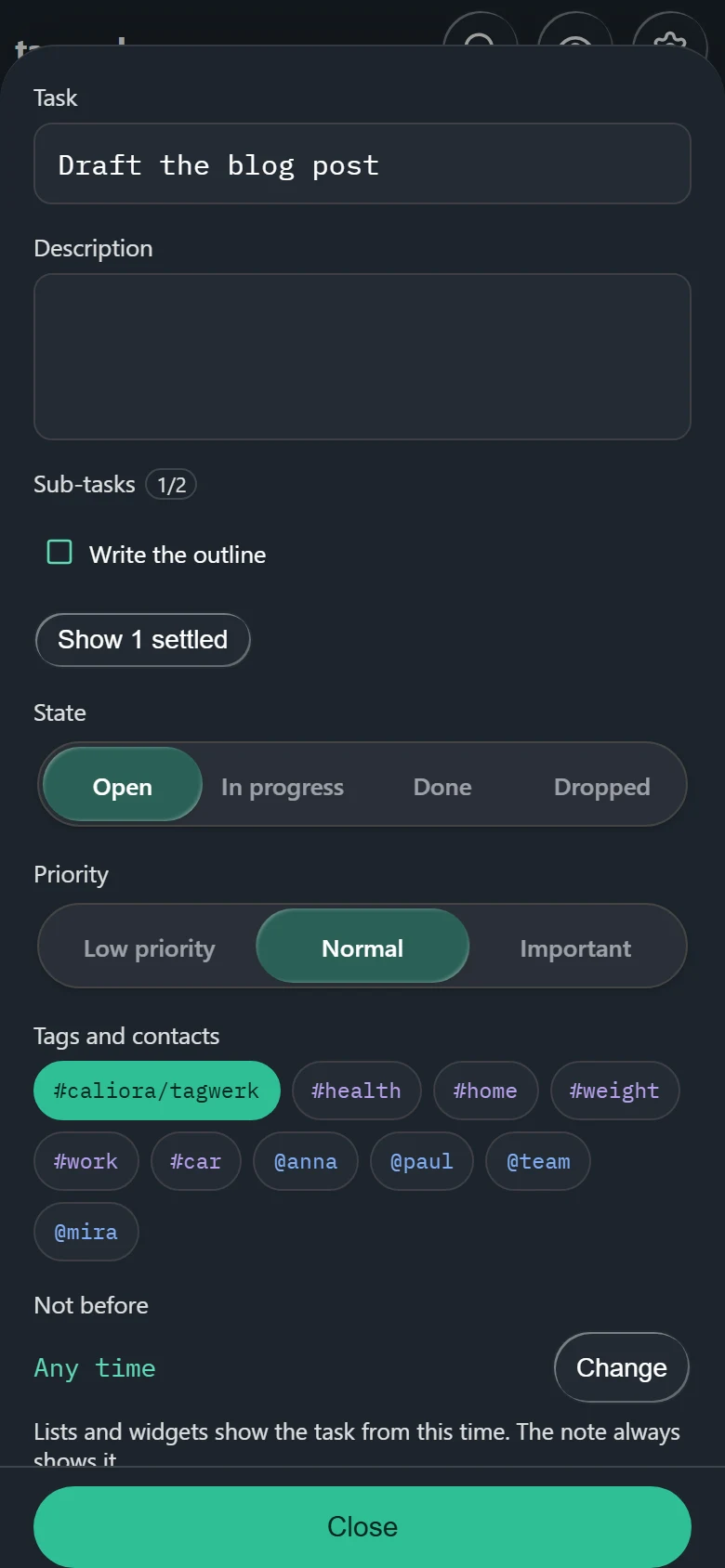
The task form shows everything a task carries as fields. It opens when you tap a task in the task
list on a phone, when you press *Task* in the note's toolbar while the cursor is on a task line
(the button then reads *Edit task*), and when you create a task from the task list.
| Field | What it writes |
| --- | --- |
| *Task* | The text of the line. |
| *Description* | The plain lines indented under the task. |
| *Sub-tasks* | Tick sub-tasks off here. *Show 1 settled* reveals the finished ones. The text of a sub-task is edited in the note. |
| *State* | *Open*, *In progress*, *Done* or *Dropped*. Forwarding is not a state you set - use *Move to day*. |
| *Priority* | *Low priority* (`~`), *Normal*, *Important* (`!`). |
| *Tags and contacts* | Tap a chip to add or remove a `#tag` or `@person`. The search field finds one that is not shown. |
| *Not before* | The time after the checkbox. *Change* sets it, the cross removes it; *Any time* means none. |
| *Reminder* | Appears once the task has a time. Writes the reminder marker `C/` - see [Reminders](../reminders/index.md#in-the-app). |
| *Repeat* | The repeat marker. *Change* opens the repeat sheet. |
| *Move to day* | Moves the task (see above). |
By default every change is written to the note at once and the form only has *Close*. If you turn
off *Apply task changes immediately* in the settings, the form gets *Cancel* and *Save* instead.
## The task list {#list}
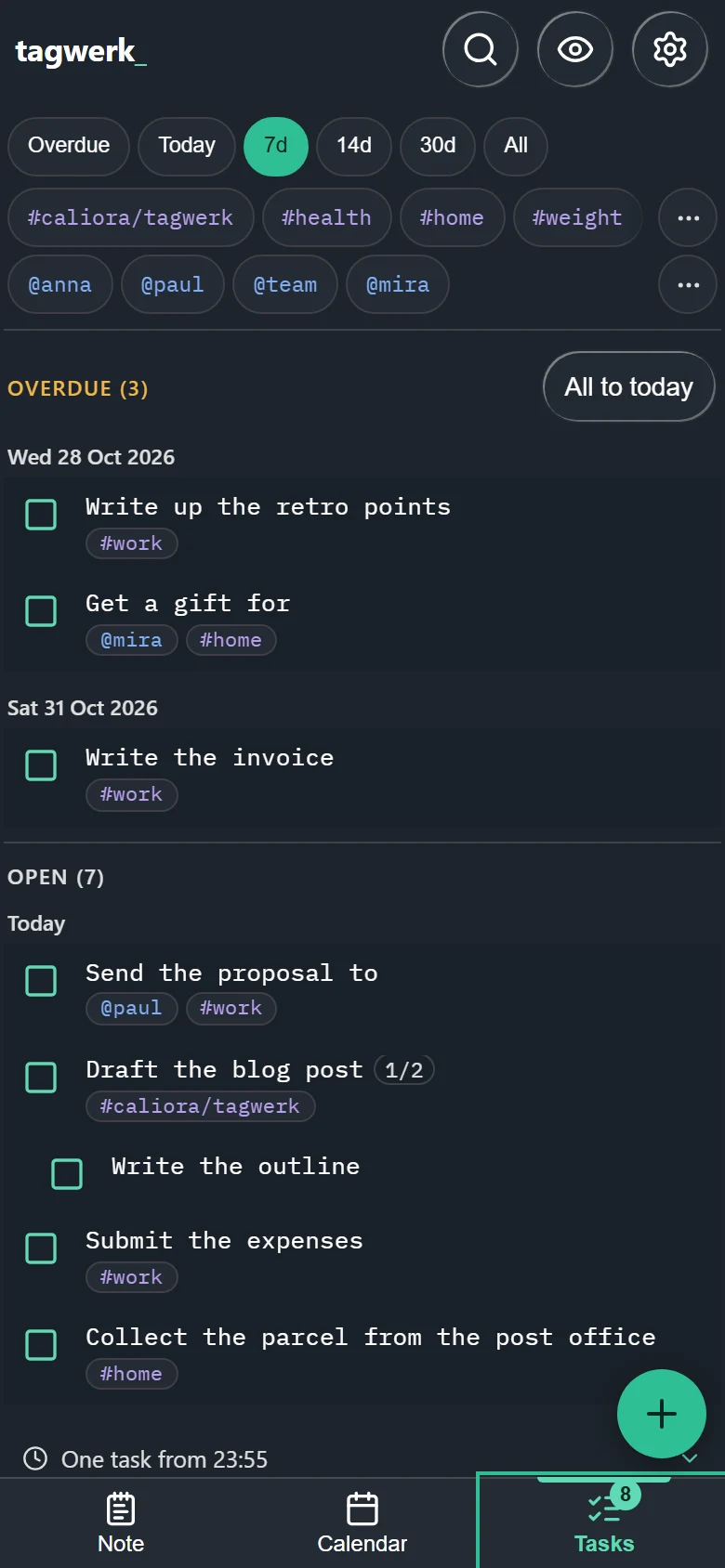
The task list collects every open and in-progress task from every day. In the desktop layout it stands to
the right of the note; on a phone it is the *Tasks* tab, whose badge counts what is due by today,
overdue tasks included.
### Horizon
The first row of chips sets how far ahead the list looks:
| Chip | Shows |
| --- | --- |
| *Overdue* | Only tasks from past days. |
| *Today* | Overdue tasks and today's. |
| *7d*, *14d*, *30d* | Overdue tasks and the coming 7, 14 or 30 days. |
| *All* | Every open task, however far ahead. |
The list has two sections. *Overdue* holds open tasks from days before today, grouped by day.
*Open* holds today's tasks and the following days within the horizon. Within a day, important
tasks come first and low-priority ones last; tasks without a time come before timed ones.
### Filters
The second and third rows hold your tags and contacts, the ones you used nearest to today first.
A tap on a chip cycles through three states:
1. *Only #tag* - the list shows only tasks carrying it.
2. *Without #tag* - the list hides tasks carrying it.
3. Off again.
Several wanted chips widen the list (any of them); an excluded chip always wins. A sub-task counts
with its own tags and contacts and those of the tasks it is indented under: *Without #tag* hides a
task together with its sub-tasks, *Only #tag* shows them with it. The row itself shows only the
tags written on its own line. The *...* button at
the end of a row lists all tags or contacts. A long press (with a mouse: right-click) on a chip
opens the overview of that tag or person. If a filter hides everything, *Clear filter* resets the
filters and the horizon.
### Held back until later
Tasks with a "not before" time that has not come yet are not in the list. A line at the end of
today says how many are waiting, for example *One task from 23:55*. Tap it to show them; they can
be ticked off and moved like any other row.
### Acting on a row
- **Tap the checkbox** to tick the task off.
- **Tap the text** to open the task. In the desktop layout the note jumps to its line; on a phone the task
form opens.
- **Swipe the row**, hold it, or right-click it (with a mouse, pointing at it is enough) for *Done*, *To today* (for a task on another day),
*Move to day* and *Drop*.
- **All to today** next to the *Overdue* heading moves every overdue task to today in one step.
- **The + button** creates a task: pick the day (*For which day?*), the heading if the day has
any, then fill in the task form.
After each action a bar at the bottom offers *Undo* for a few seconds.
## Free and Pro {#pro}
Writing, ticking off, moving and dropping tasks is free everywhere - in the note, in the form, on
the widget card and on each row of the task list. Without Pro the task list shows the overdue tasks
and today's, and the + button works.
> [!PRO]
> The task list across the coming days belongs to tagwerk Pro: the horizon chips beyond *Today*,
> the tag and contact filters, and *All to today*. Without Pro these controls stay visible and
> explain themselves when you press them.