---
title: Troubleshooting and FAQ
description: Answers to common questions, where tagwerk writes its log and how to read it, and how to report a bug so it can be fixed.
reviewed: 2026-10-29
---
## Reporting a problem {#report}
Bugs and ideas are collected in the public issue tracker on GitHub:
[github.com/caliora-org/tagwerk/issues](https://github.com/caliora-org/tagwerk/issues). The app
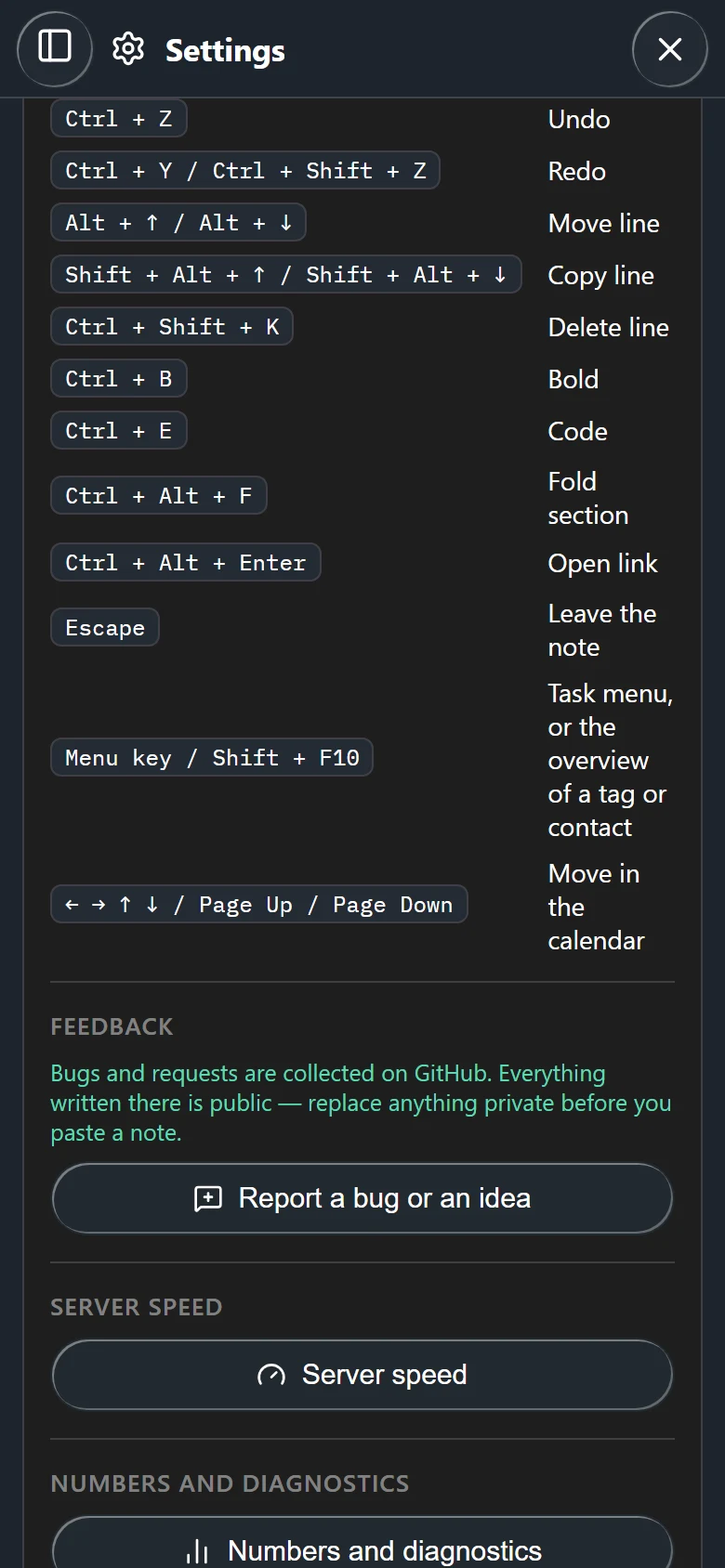
leads there too: *Settings → Help → Feedback → Report a bug or an idea*.
> [!WARNING]
> Everything written in the tracker is public. Replace anything private before you paste a note,
> a log or a screenshot.
A report that can be acted on says:
- **the platform**: Android from Google Play, Android without Google, Windows or Linux;
- **the version**: at the very bottom of the settings page, under *Version*. The text can be
selected and copied;
- **what you did, what you expected and what happened instead**, in that order;
- **the log**, or the part of it around the time of the problem (see [The log](#log));
- for problems with notes, tasks or the calendar, the report from *Numbers and diagnostics* (see
[Numbers for a bug report](#numbers)).
Problems with a purchase or a licence do not belong in the public tracker, because a licence
carries your name and address. The [licence page](../../license/#help) says how to reach us.
## The log {#log}
tagwerk writes what it does on startup, and every warning and error, into a log on the device. It
keeps one file per day for seven days. The log stays on the device; nothing is sent.
To read it, open *Settings → Help*. Under *Diagnostics* the *Log* field shows everything still kept,
oldest first and newest at the bottom. A very long log is cut from the top.
- *Copy* puts the whole log on the clipboard. If the device refuses the clipboard, the text is
selected instead and can be copied by hand.
- *Clear log* deletes the kept files. Clear it before you reproduce a problem, and the log then
holds only what belongs to it.
Each line starts with a time stamp, then the level in brackets, then where it comes from:
```
2026-10-28 09:14:02.317 +01:00 [Info] StartupTrace: shell rendered: 1503 ms
2026-10-28 09:14:05.020 +01:00 [Warning] LicenseService: tagwerk.license in ... is not a usable licence: Malformed.
```
- `[Info]` lines are the ordinary startup trail and say nothing is wrong.
- `[Warning]` is something that went wrong and was handled.
- `[Error]` is something that failed. These are the lines a report needs.
When the same entry repeats, it is written once, followed by a line such as `(the entry above
repeated 428 times, over 2.0 s)`. The log is in English whatever language the app speaks.
## Numbers for a bug report {#numbers}
*Settings → Help → Numbers and diagnostics* counts your whole notes folder and the app's own
database. *For a bug report* holds the same numbers as plain text, with *Copy*. It contains counts,
never the text of your notes. What the page shows is described in
[Numbers and diagnostics](../tags-and-search/index.md#numbers).

The group *Internal* at the end is meant for us: which licence gate is active, whether the licence
was read, whether the notes folder is reachable. Include it when Pro or the notes folder behave
strangely.
For a sync that is slow, *Settings → Help → Server speed* measures every request to your server.
See [Server speed](../sync/index.md#server-speed).
## Notes and storage {#notes}
### Where are my notes? {#where}
In your notes folder, one Markdown file per day. *Settings → Storage* shows the exact path and how
many notes it holds. Where the folder is at first depends on the platform, see
[Getting started](../getting-started/index.md#first-launch).
### Android says "Notes live inside the app" {#inside-the-app}
On Android the notes start out in the app's own storage, and uninstalling the app deletes it. As
long as that is the only copy, *Settings → Storage* says *Notes live inside the app*. Move the notes
into a folder of your own with *Settings → Storage → Choose folder...*, or set up
[sync](../sync/index.md). The warning then goes away. Choosing and moving folders is explained in
[Profiles and storage](../profiles-and-storage/index.md).
### The notes are gone, and Storage says "The folder is gone" {#folder-gone}
The notes folder cannot be found: a USB drive or network drive is not connected, the folder was
renamed or moved. *Settings → Storage* then says *This folder does
not exist. Nothing was loaded from it.* Nothing has been deleted. Connect the drive, or choose the
folder again with *Choose folder...*.
### Android: "The app's access to this folder has ended" {#folder-access}
After reinstalling the app, after *Clear storage* in the app info, or on a new phone restored from a
backup, the folder is still there but the app's permission to it is not - Android ties it to the
installation. The day and *Settings → Storage* then say *The app's access to this folder has ended.
The folder itself is probably still there.* Tap *Grant folder access again* and pick the same folder
in the folder picker. Picking a different folder moves nothing; for that, use *Choose folder...*.
### A day exists twice {#conflict}
A strip above the note says *This day exists twice.* The day was changed in two places - on two
devices, or by another program while tagwerk had it open - and both versions were kept. Press
*Compare the versions* and choose what to keep, as described in
[Conflicts](../sync/index.md#conflicts).
### I deleted text by mistake {#undo}
Right after the change, use undo: Ctrl+Z with mouse and keyboard, or the *Undo*
button in the editor's toolbar ([Undo and redo](../day-notes/index.md#undo)). For
anything older, tagwerk keeps earlier states of every day for up to 180 days, free on every
platform: see [Revision history](../day-notes/index.md#history).
### I deleted a note on one device and it is back {#deleted-day}
The built-in sync does not pass on a deleted day, so that a tidy-up on one device cannot remove
notes everywhere. To remove the day everywhere, delete the file on the server too. See
[What the built-in sync moves](../sync/index.md#what-moves).
## Sync {#sync}
### The sync does not work {#sync-fails}
Open *Settings → Sync* and press *Test connection*. It checks six stages in order and stops at the
first one that fails, with a sentence on what to do. The stages are described in
[The connection test](../sync/index.md#connection-test), the causes and a server admin's fixes in
[Sync servers](../sync-servers/index.md#troubleshooting).
### On Linux the password is gone after every restart {#linux-keyring}
tagwerk keeps the WebDAV password in the desktop's keyring, never in a file. In the snap, on desktops
without the secret portal, the snap needs access to the keyring. The sync setup then says *The app
password could not be saved.* Run this once in a terminal, then try again:
```
sudo snap connect tagwerk:password-manager-service
```
Also check that the keyring is unlocked.
### The sync is slow {#sync-slow}
*Settings → Help → Server speed* shows how long your server takes for each kind of request. The
text under *For your hosting provider* is meant for a support request to your host. See
[Server speed](../sync/index.md#server-speed).
## Starting the app {#start}
### Windows says "tagwerk cannot start" {#webview2}
tagwerk draws its window with the Microsoft Edge WebView2 runtime. Windows 11 has it, and so do most
Windows 10 machines. Where it is missing, tagwerk says *The Microsoft Edge WebView2 runtime is
missing.* and offers to open the download page. Install the runtime from there and start tagwerk
again.
### A second start does not open a second window {#single-instance}
On Windows and Linux only one tagwerk runs at a time. Starting it again brings the window that is
already open to the front. Some Linux desktops only highlight it in the dock or taskbar.
### "An unhandled error has occurred" or "Tagwerk could not start" {#app-error}
The interface failed, not your notes - they are files on the device and are not affected. Press
*Reload* or *Try again*, or close tagwerk and start it again. If it keeps happening, copy the log
from *Settings → Help* and [report it](#report).
### Which version do I have, and is there an update? {#version}
The version stands at the very bottom of the settings page. Updates come from where you installed
tagwerk: Google Play, the Microsoft Store or the Snap Store. On Windows and in the APK for Android
without Google, the line under the version also says whether an update is waiting, with *Check
now*. See [Settings](../settings/index.md).
## Pro and licence {#pro}
### Pro is gone on a new device or after a reinstall {#pro-gone}
On Android from Google Play, press *Restore purchase* in *Settings → tagwerk Pro*. Everywhere else,
the device needs the licence file: through your folder sync, by pasting it under *Import licence*, or
from the purchase mail. See [Pro on your other devices](../pro/index.md#other-devices) and
[A lost licence](../pro/index.md#lost).
### The licence file is in the folder, and Pro does not switch on {#licence-not-read}
tagwerk reads a licence file that another program put into the folder when it starts. Close and
reopen the app. If *Settings → tagwerk Pro* then says *A licence file is in the notes folder, but it
could not be verified*, the file was changed or only partly copied: paste the licence from the mail
under *Import licence*.
### I bought Pro and nothing happened in the app {#bought}
On Windows and Android without Google the purchase runs in the browser, and the licence arrives by
e-mail. Paste it under *Import licence*. No mail after a few minutes: look in the spam folder, then
use the form on the [licence page](../../license/#lost).